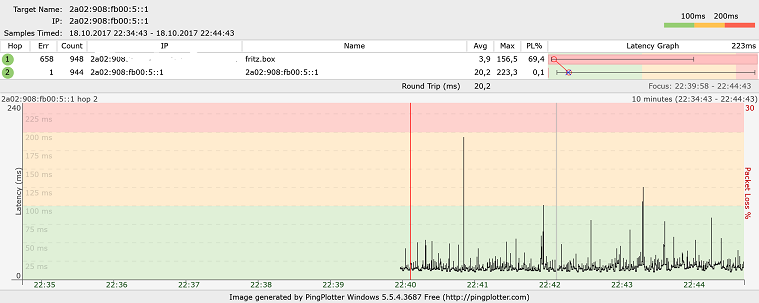
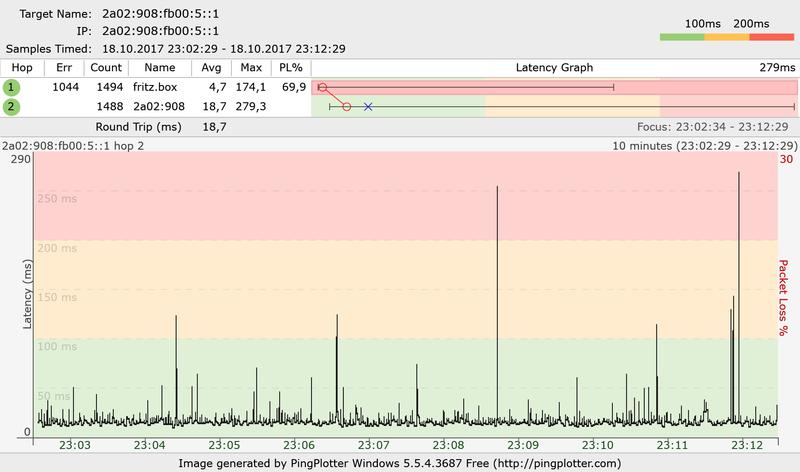
Another issue with those plots is that the MAX time value isn't available in the upper data area. Pingplotter averages the plot data. In a 60 second, and maybe 5 minute plot, with a reasonable ping rate, the data that is plotted will be close to or at the real maximum response times. As you go up in timeframes, 10 min, 60 min 24 hours, etc, etc, you are attempting to cram more data into the same horizontal plot area. Essentially more data points per horizontal pixel. Pingplotter deals with this by averaging the data points in some specific horizontal pixel range instead of showing the max and min values. The end result, as you go up in timeframes, the plot looks better and better as any high time responses are buried in the averaged data and the plot line flattens out. You have to drop back down to a 60 second time frame to actually see the real values, and, when you drop the ping intervals, somewhere down below 0.5 seconds, you eventually get to a point where the data is averaged and you can't do anything about it. In this regard, pingplotter is not a good test tool. They are aware of this as its been brought up to them on more than one occasion. So, for the time being try displaying that plot with a 60 second and 5 min timeframe.
Tell the poster to display the MAX response times in the upper data area. To do that, right click on the top column title bar to bring up the column menu. Select MAX and ERR and then drag those columns to the right to sit near or beside the MIN time column. When you look at a plot with that MAX time column, you can compare the actual MAX time to the plotted maximum time. If they match, then pingplotter isn't averaging the data. If the plot maximum time is less than the MAX time data, then pingplotter is averaging the data for the ping interval and plot time that is shown on the plot.